Run it with your team, on the record.
Invite people to help run your company, each with only the role they need. Every decision, access change and pause is kept in the audit log.
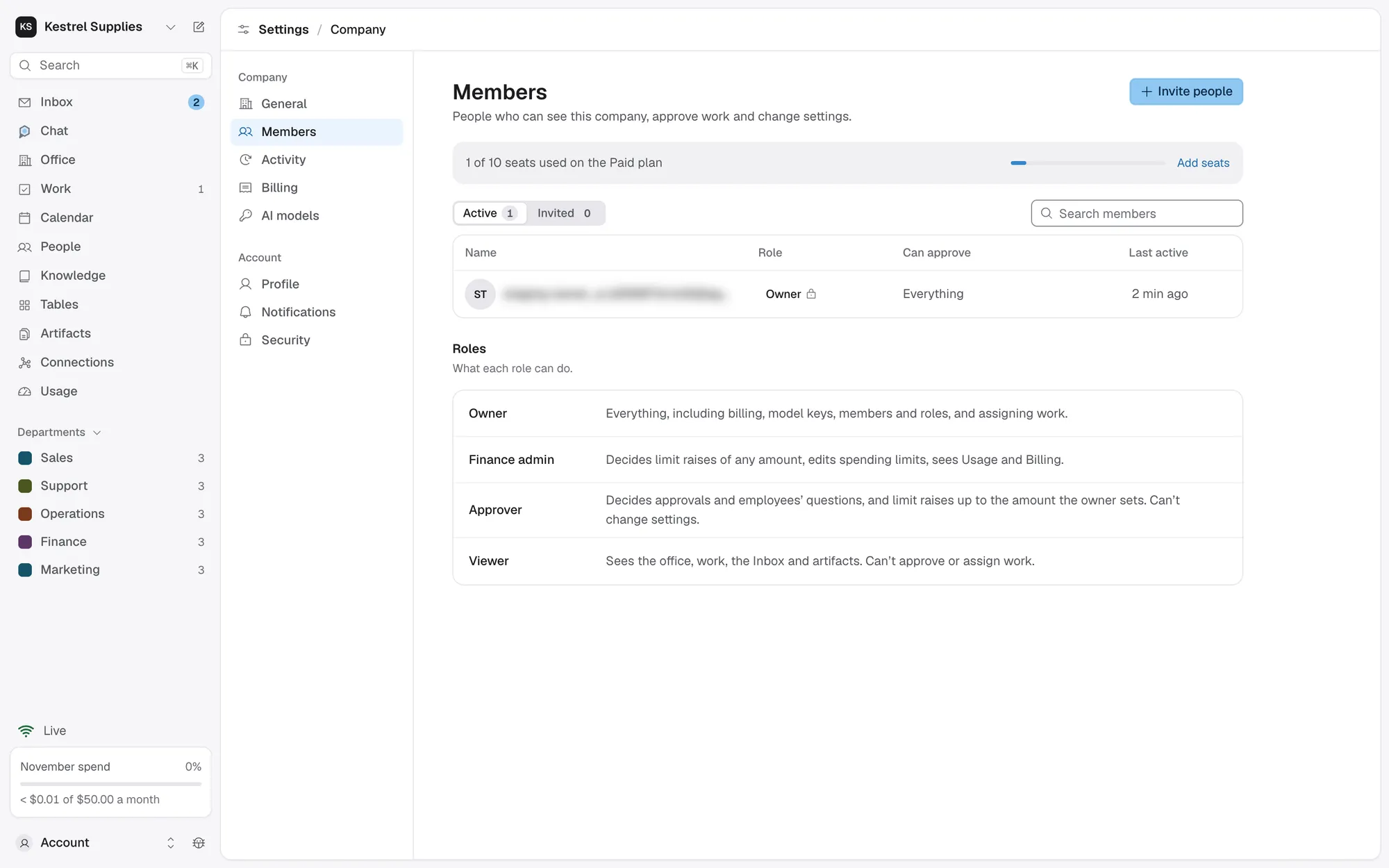
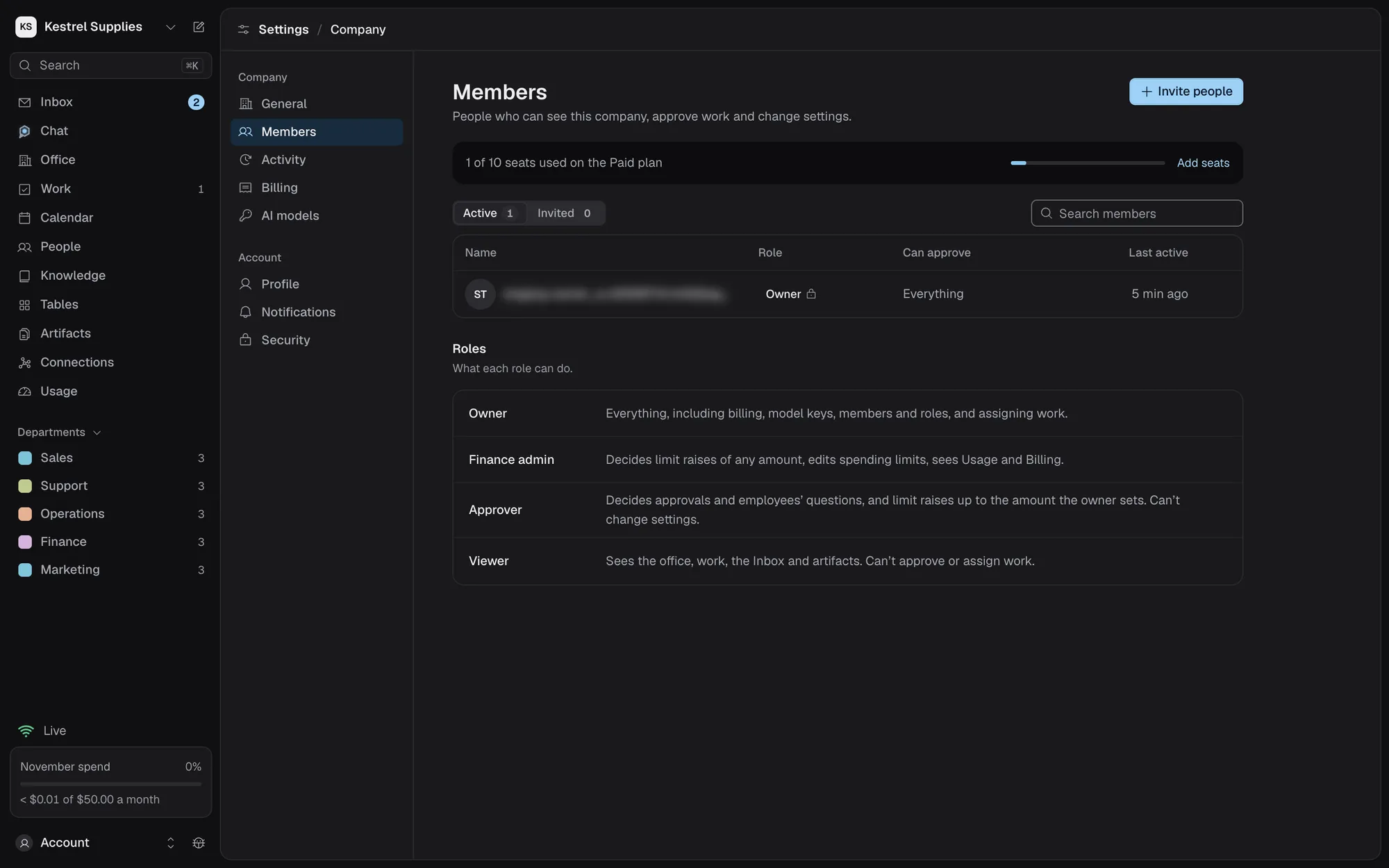
People and employees get only what they need.
On Paid, invite people by email. Each role sees and decides only its part, and only you, the owner, assign work.
- Finance admin: limit raises, spending limits, Usage, Billing
- Approver: approvals, questions and raises up to a set amount
- Viewer: the office, work, the Inbox and artifacts
- Each member’s chats are private to them
For every app, each employee has None, Read, or Read and write. A department, title or skill grants nothing.
- Reads run without asking
- Read and write still asks you for every write
- New actions an app adds start without access
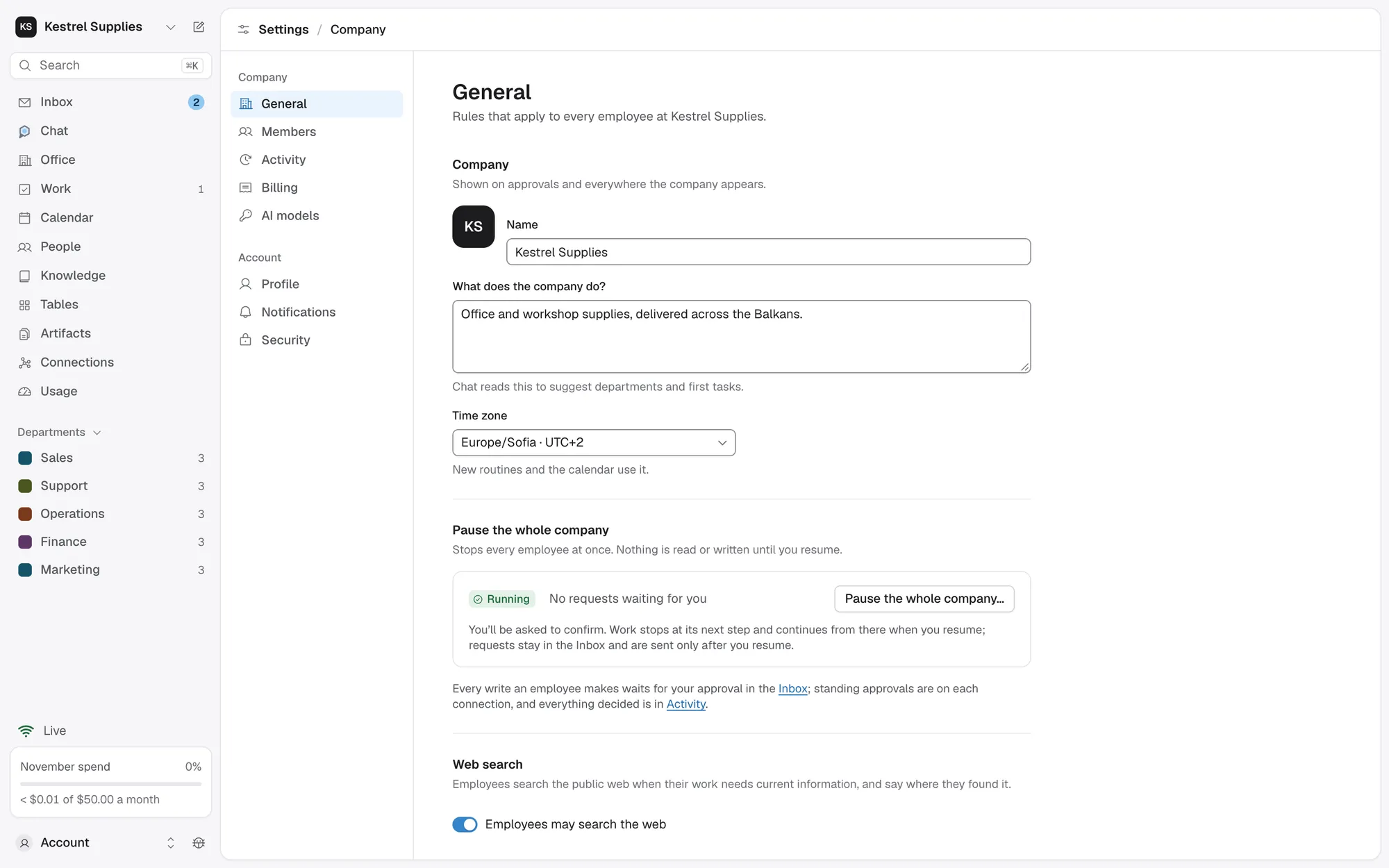
Pause the whole company, one employee or one task. Work stops at the next safe point and continues from the same step.
- Nothing is sent or spent while paused
- You can still decide approvals; they go out on resume
- Only the owner can pause or resume
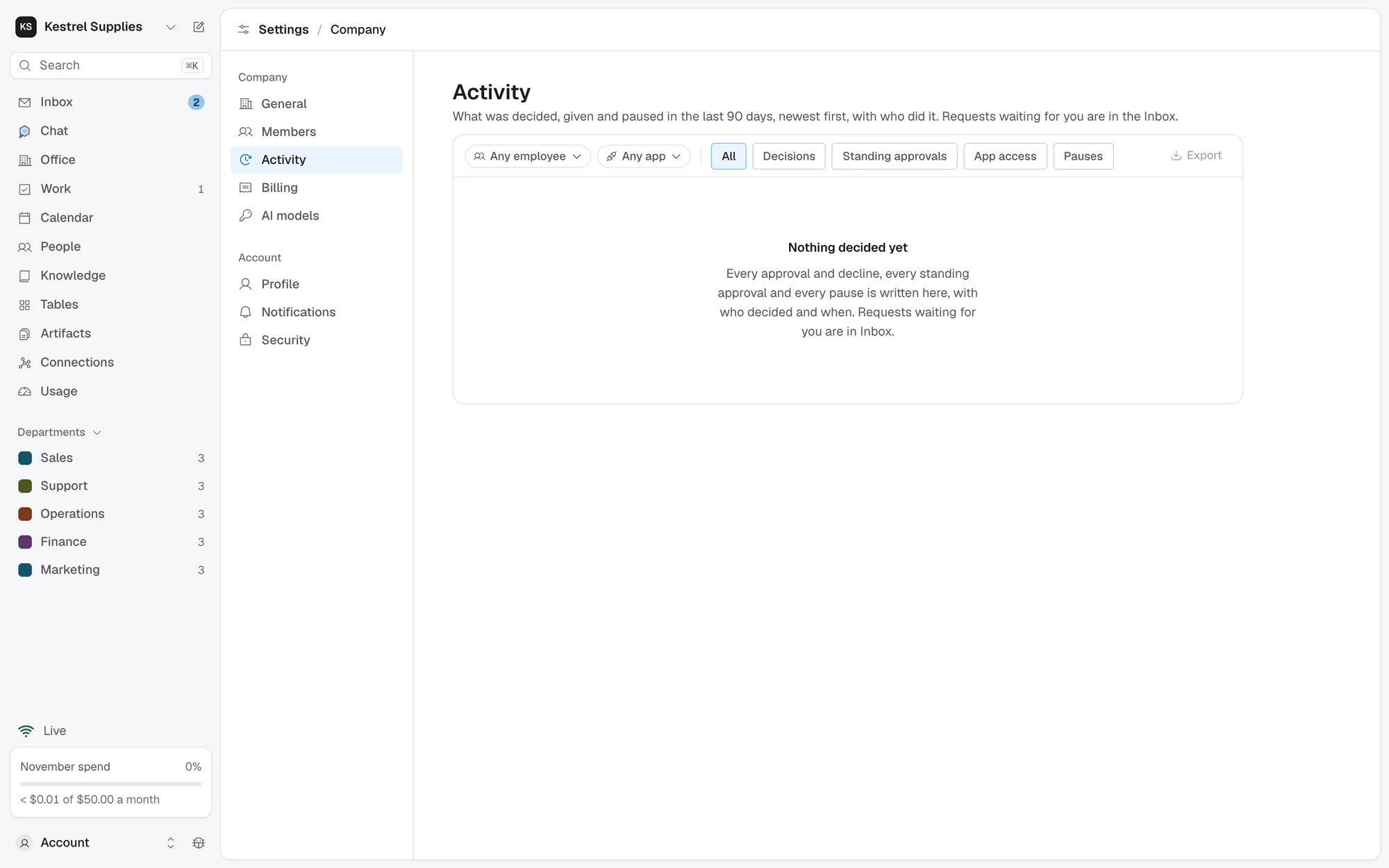
Every decision, access change and pause.
Settings › Activity lists the last 90 days, newest first and grouped by day. Records are added, never changed, and every member can read them.
- Each row names who acted: you, a member, Royak or a standing approval
- Access given or removed, and pauses with how long they lasted
- Filter by employee, app or kind of event
- Export the rows shown as a CSV file
Stop everything, lose nothing.
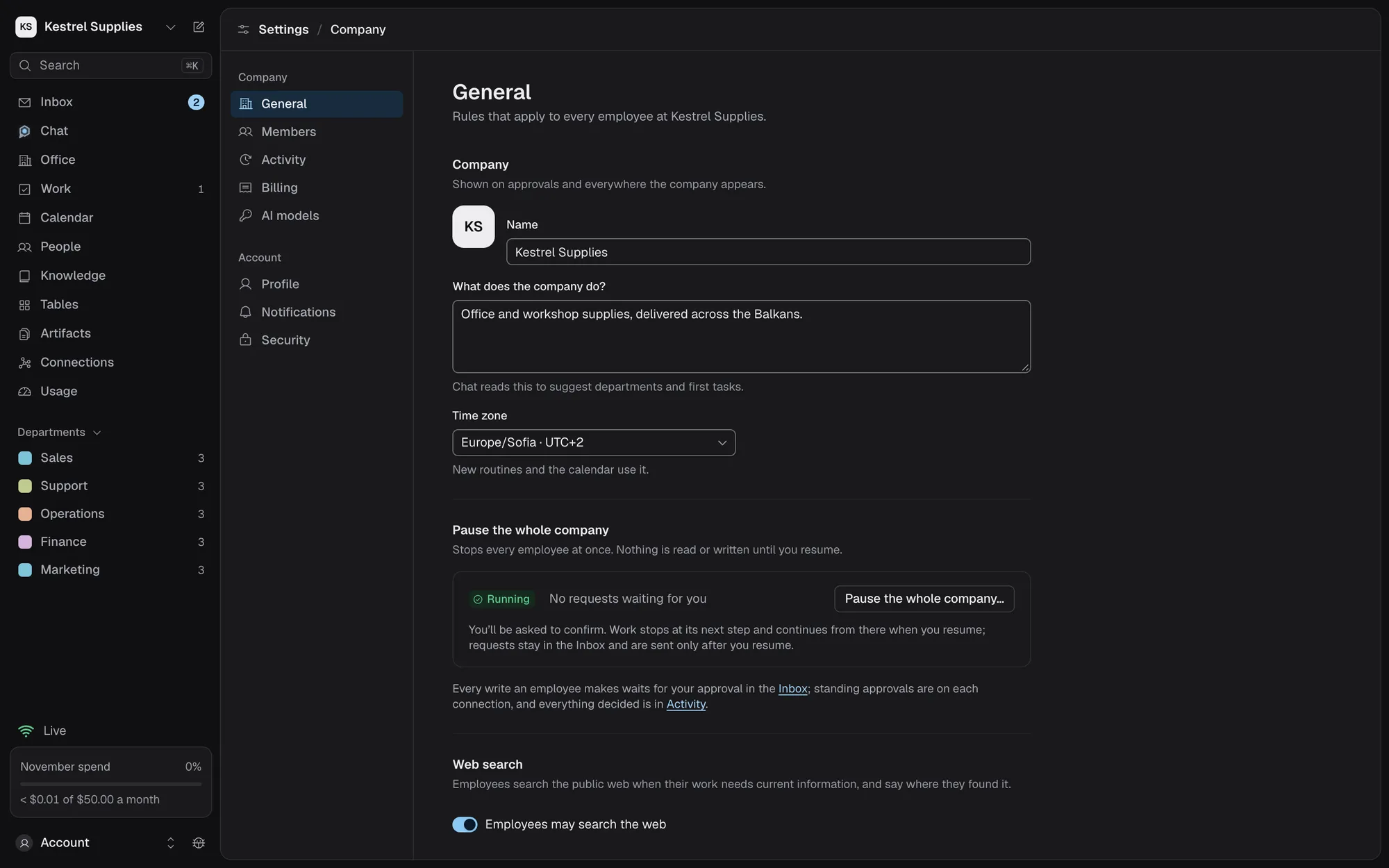
Pause from the foot of the Office floor or from Settings › General. The dialog lists who stops mid-step and which routines won’t start before you confirm.
- New and queued work waits, and routines don’t start
- A call already under way finishes and is charged
- Other members see the paused state but not the controls
- Resume and work continues from where it stopped
Questions about your team.
How many people can I invite?
Free has one seat, the owner’s. Paid has 10 seats a company, counting active members and open invitations, the owner included.
Can a member assign tasks?
No. Only the owner assigns work, manages connections, adds AI keys and changes the company’s settings. Approvers decide; viewers watch.
How does an invitation work?
The link works once, for the invited address, for 7 days. They sign in or create an account with that address and land in the company’s office.
What happens when I remove someone?
It takes effect at their next request. Their past decisions keep their name in the history, and you can invite them again later.
Can the audit log be edited?
No. Decisions, steps and charges are added, never changed.
Share the work, keep the authority.
On Paid, up to 10 seats a company, each role seeing and deciding only its part.